Organization Settings
Configure pay periods, working hours, and time tracking behavior.

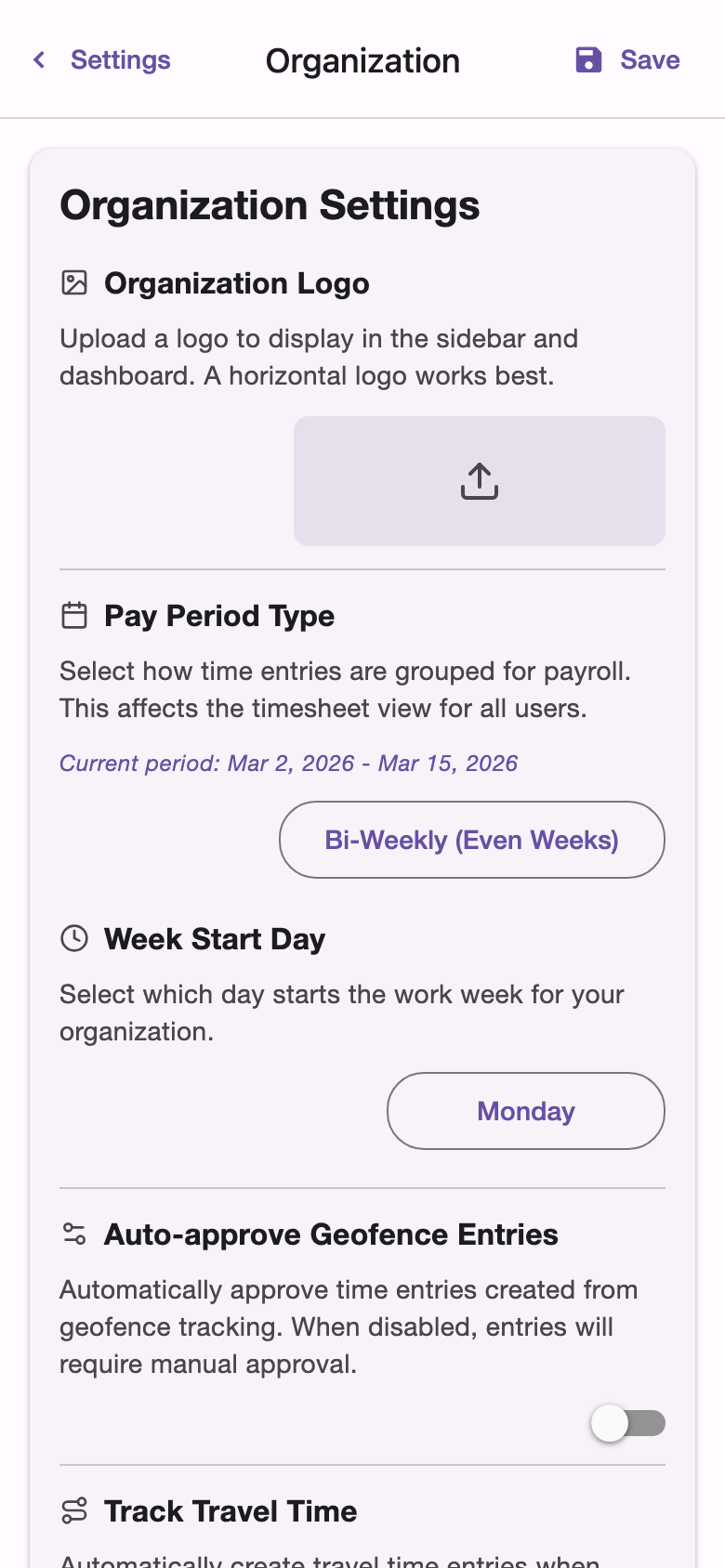
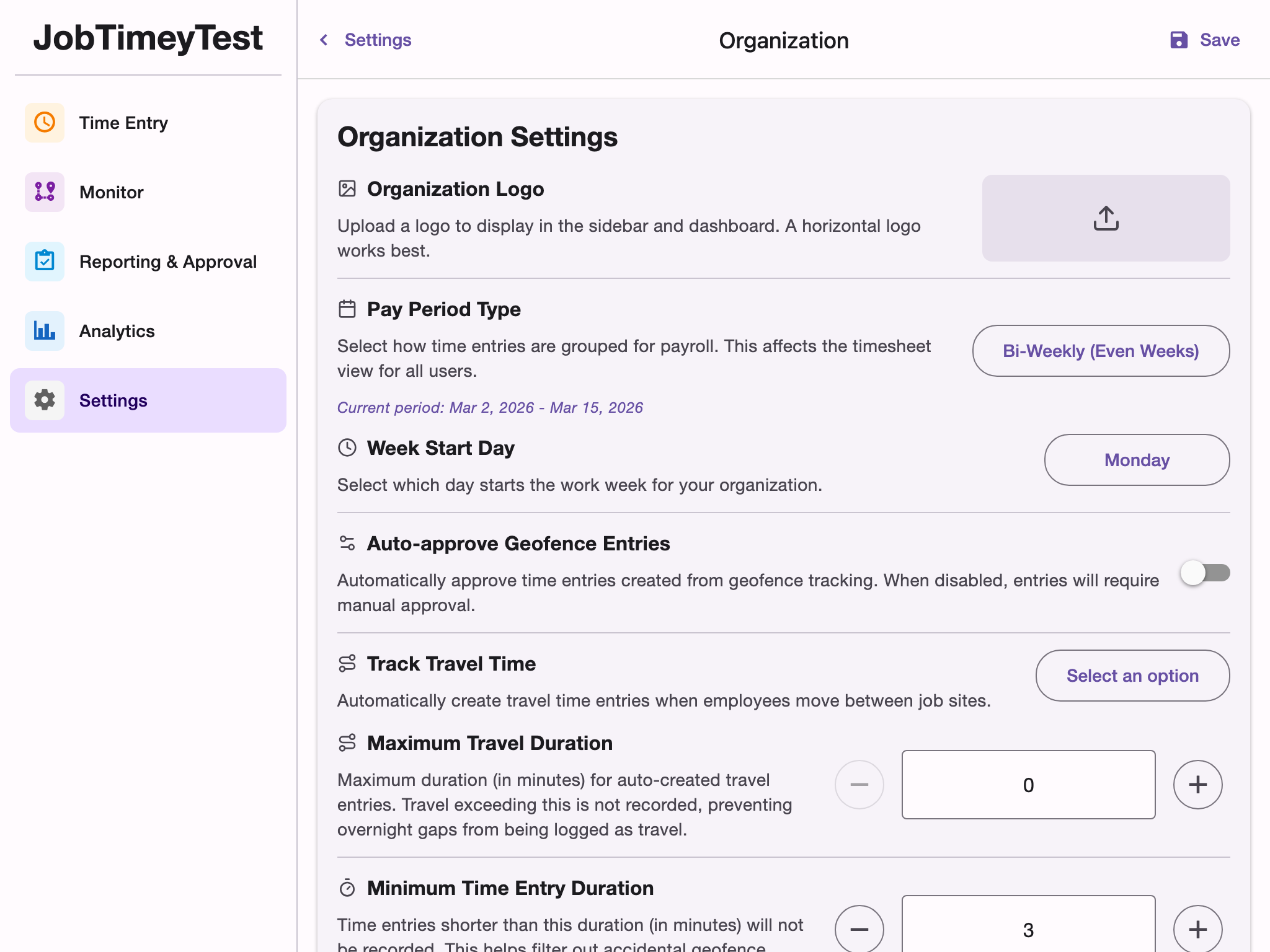
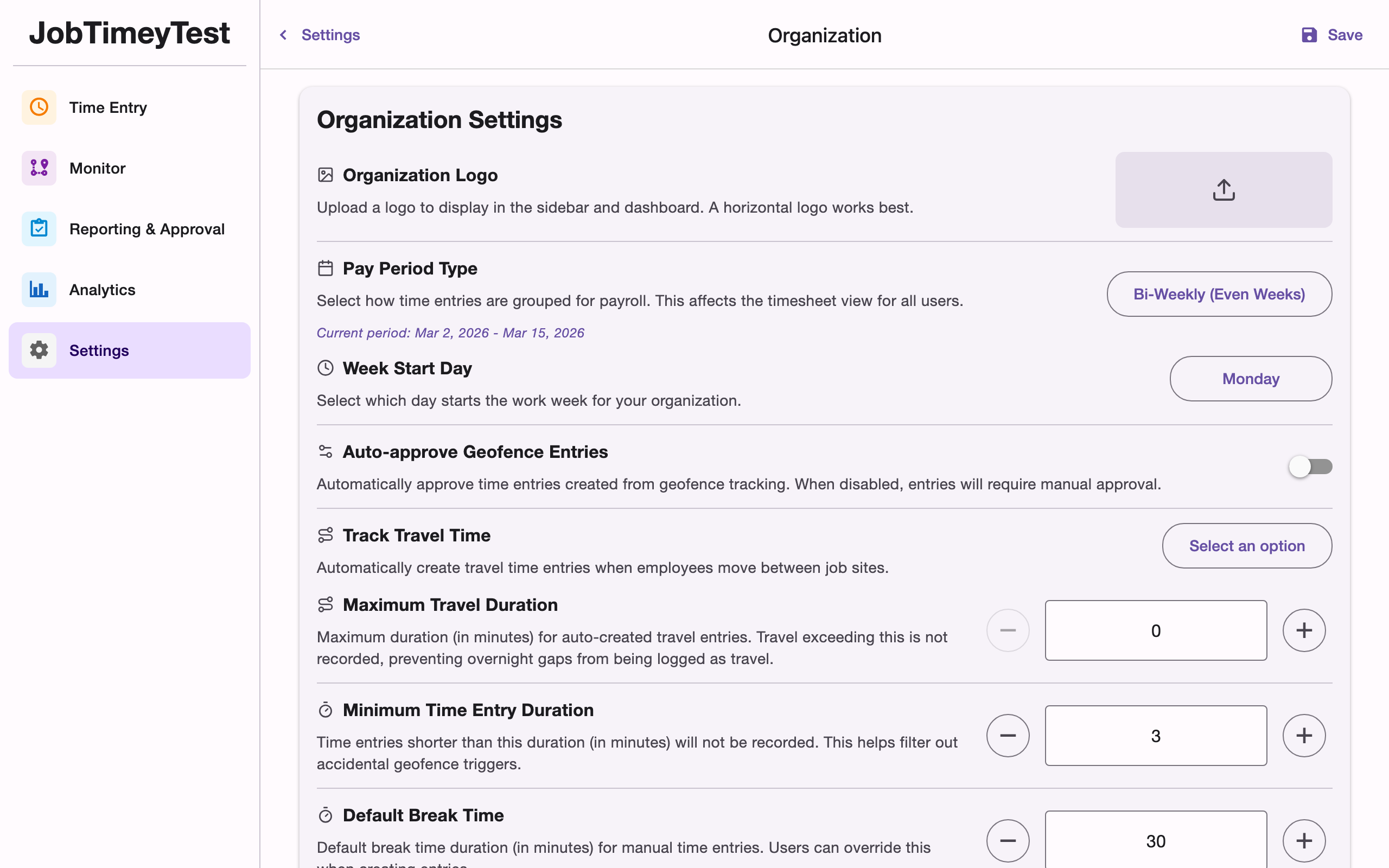
The Settings > Organization page lets admins configure organization-wide defaults for time tracking, pay periods, and working hours. These settings apply to all team members unless overridden at the individual level.
Organization Logo
Upload your company logo for display in the sidebar and dashboard. A horizontal format works best. The logo appears across the app wherever your organization name is shown.
Pay Period
Choose how your pay periods are structured:
- Weekly - one-week periods
- Biweekly (Even) - two-week periods starting on even-numbered weeks
- Biweekly (Odd) - two-week periods starting on odd-numbered weeks
- Monthly - calendar month periods
The pay period type determines how time entries are grouped on the Entry and Reporting pages. A preview of the current period is shown so you can verify the dates align with your payroll schedule.
Week Start Day
When using Weekly or Biweekly pay periods, you can choose which day of the week starts a new period. This defaults to Monday but can be set to any day. This setting is hidden for monthly periods.
Auto-Approve Geofence Entries
When enabled, time entries created automatically by geofence location tracking are approved immediately without requiring manual review. Turn this off if you prefer to review all geofence entries before approval.
Travel Time Tracking
Control how travel time between job sites is handled:
- Off - travel time is not tracked
- Destination job - travel time is associated with the job the team member is traveling to
- Source job - travel time is associated with the job the team member is traveling from
Maximum Travel Duration
When travel tracking is enabled, set a maximum duration (in minutes, up to 480) to prevent overnight gaps or long breaks from being logged as travel time. Increments in 15-minute steps.
Minimum Entry Duration
Set a minimum time (in minutes, up to 60) for a geofence time entry to be recorded. This filters out accidental triggers - for example, a team member driving past a job site without stopping. If a geofence entry is shorter than this threshold when the member leaves the area, it is automatically discarded.
Default Break Time
Set the default break duration (in minutes) that is pre-filled when creating time entries. Team members can adjust this value when adding manual entries. Break time is subtracted from the total entry duration in reports.
Default Working Hours
Configure the standard work schedule for your organization:
- Enable/disable - toggle whether working hours are enforced
- Work start time - when the workday begins (e.g., 08:00)
- Work end time - when the workday ends (e.g., 18:00)
- Working days - select which days of the week are active (defaults to Monday through Friday)
When enabled, location tracking automatically pauses outside of these hours. Individual team members can override these defaults with custom working hours set on their member detail page.