Reviewing and Approving Time
Review, approve, and manage your team's time entries.

The Reporting page is where admins and clerical users review and approve time entries submitted by the team. Entries are grouped by team member and organized by pay period.
Accessing Reporting
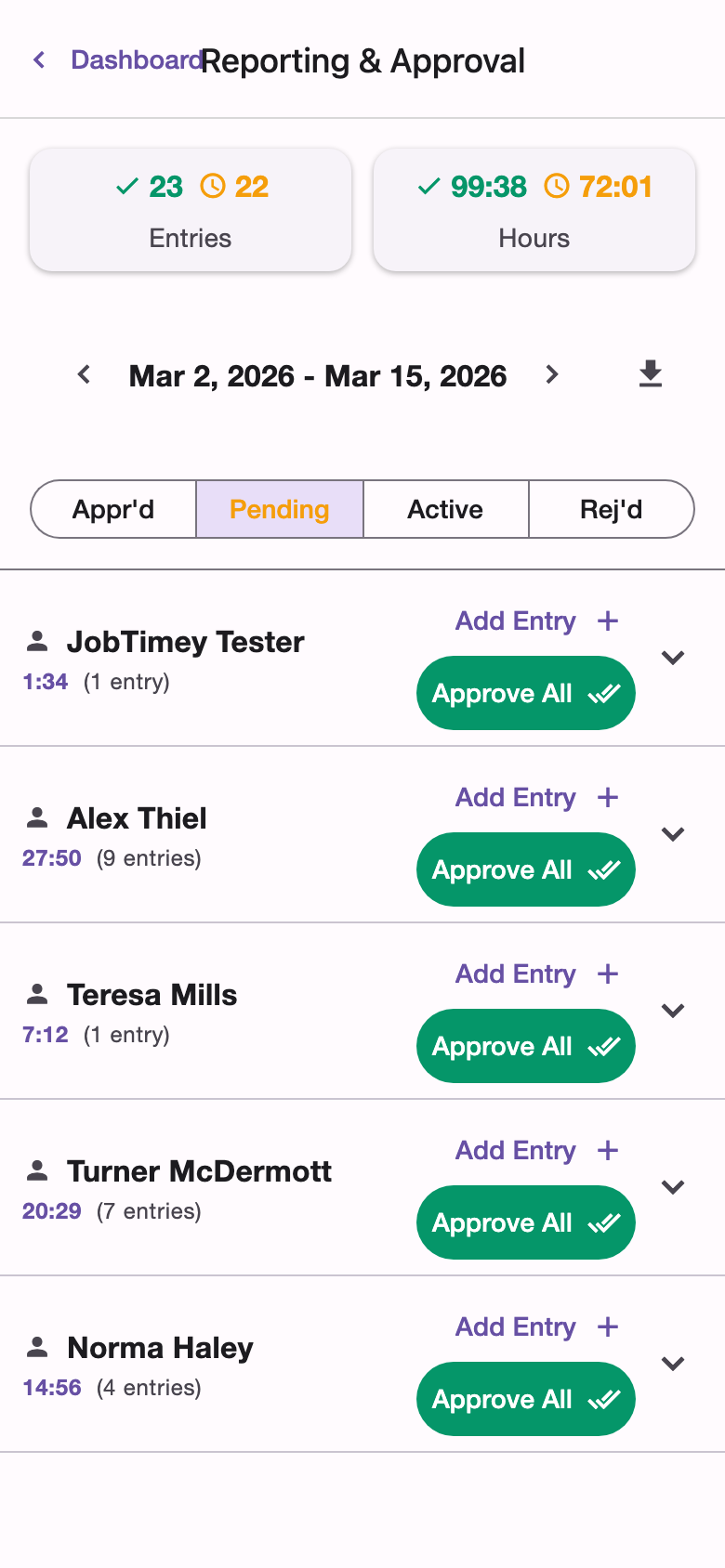
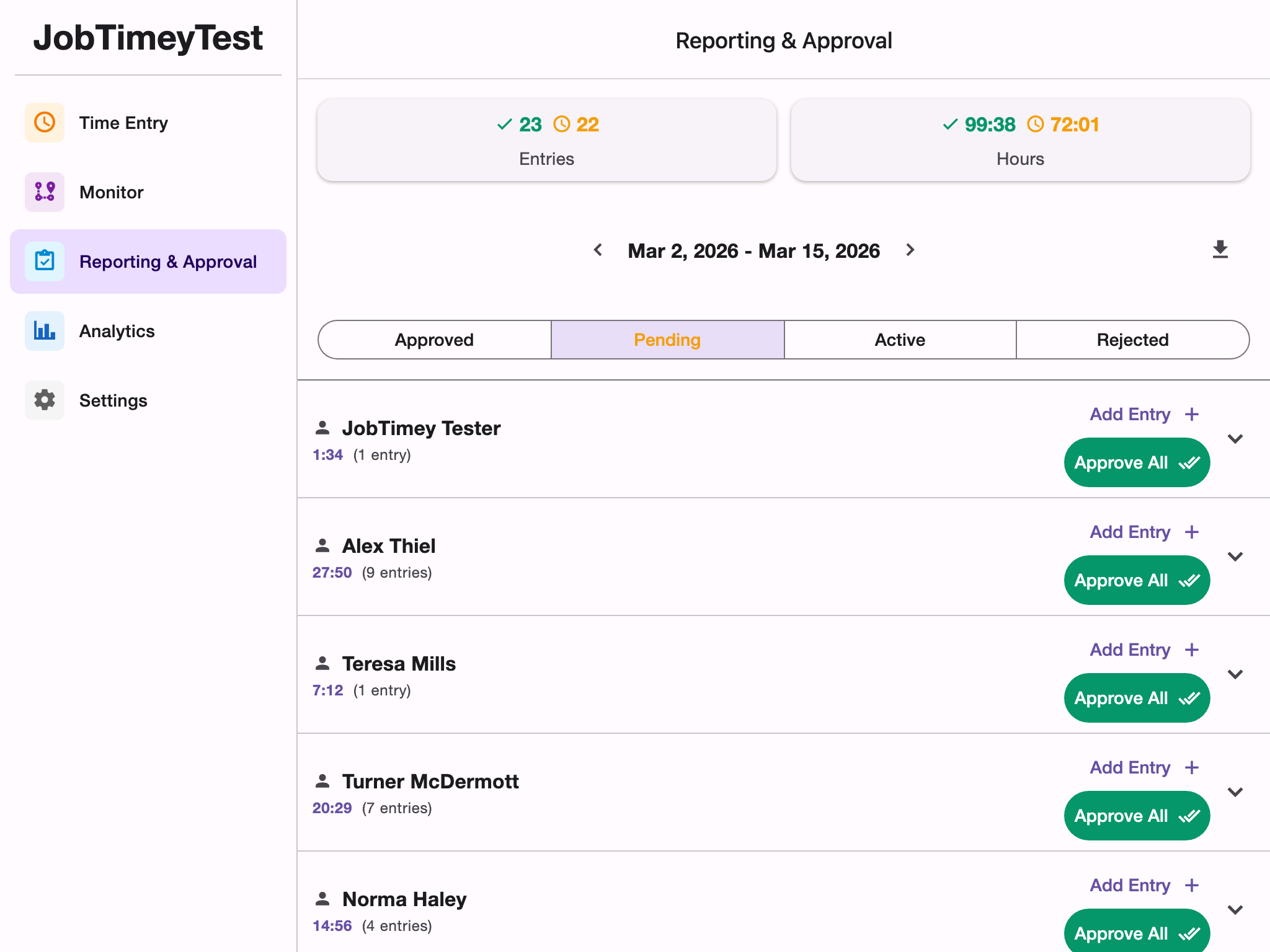
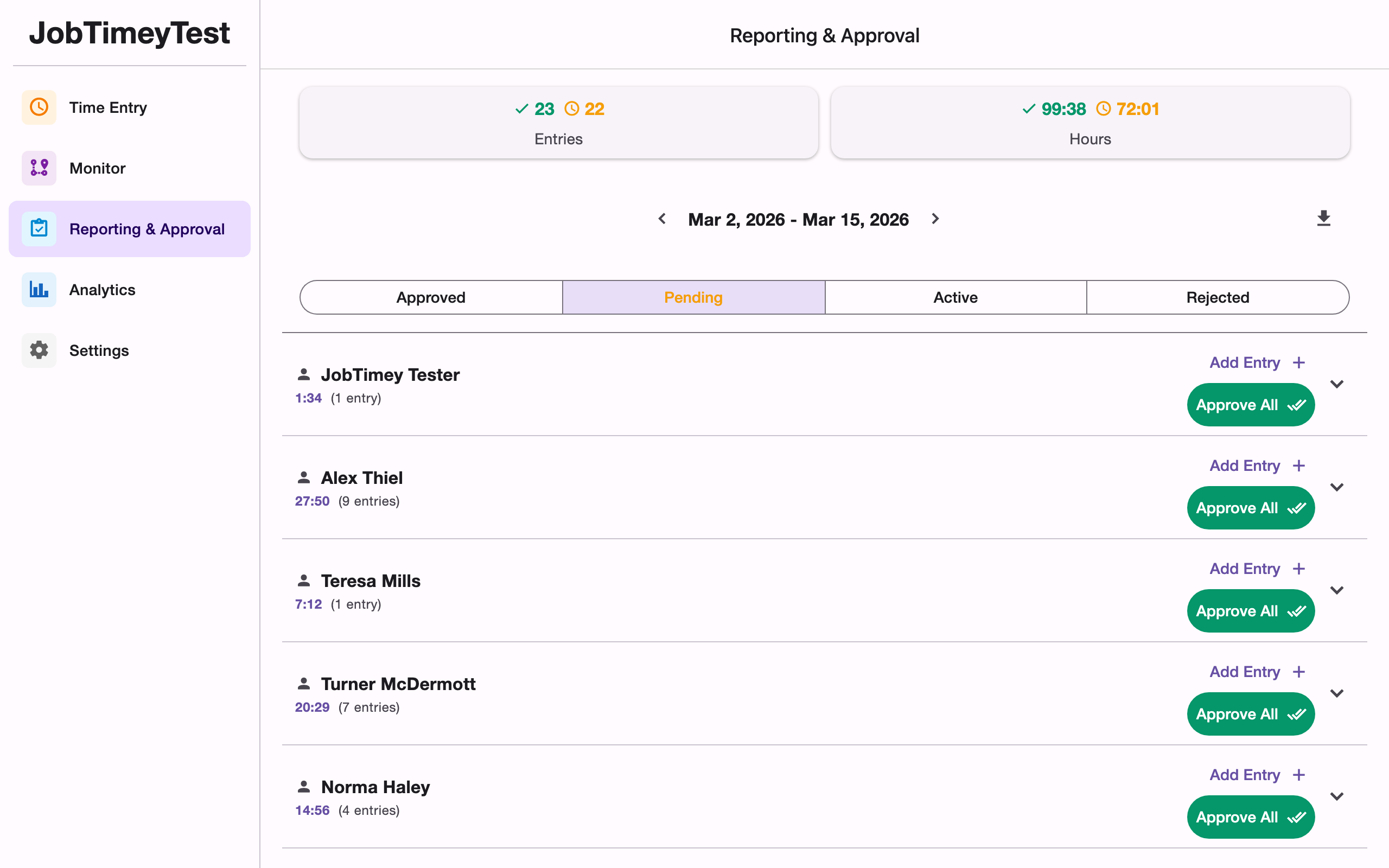
Navigate to the Reporting page from the main navigation. At the top, you’ll see a summary showing:
- Number of pending entries and total pending hours
- Number of approved entries and total approved hours
Period Navigation
Use the navigation arrows to move between pay periods, or tap the center button to return to the current period. The period type (weekly, biweekly, monthly) is determined by your Organization Settings.
Filtering by Status
Use the status filter buttons to view entries by their current state:
- Pending - entries awaiting your review (default view)
- Approved - entries you’ve already approved
- Active - timers currently running
- Rejected - entries returned for correction
Reviewing Entries
Entries are grouped by team member. Each section header shows the member’s name, their identifying color, total hours, and entry count. Tap a section to expand or collapse it.
Each entry row displays the entry type, date, job, location, times, and duration.
Approving Entries
You have two options for approving time:
- Individual approval - review and approve entries one at a time by tapping the approve action on each entry
- Bulk approve - tap Approve All on a team member’s section header to approve all their pending entries for the current pay period at once
Bulk approve is only visible when viewing the Pending filter.
Rejecting Entries
To reject an entry, tap the reject action on the entry. You’ll be prompted to enter a rejection reason explaining what needs to be corrected. The team member will see this reason and can edit and resubmit the entry.
Viewing Travel Routes
Travel-type entries display a Travel chip in their header. Tap this chip to open a map showing the route the team member traveled during that entry’s time window.
The map displays the worker’s movement path as a polyline with markers at each recorded point. Each marker shows the time, speed, and movement type (driving, walking, etc.) when tapped.
If no movement data was recorded during the travel period, the modal shows an empty state message.
Editing Entries
Admins can edit any entry directly from the reporting page by tapping the edit icon. This is useful for correcting times, changing jobs, or adjusting break durations on behalf of a team member.
Adding Entries for Team Members
Admins can also create time entries on behalf of team members. Tap the Add Entry button on a team member’s section header to open the manual entry form pre-filled with that member’s information.
CSV Export
Tap the download button to export the current pay period’s entries as a CSV file. The export includes all entries with user information, making it suitable for payroll processing or record keeping.